

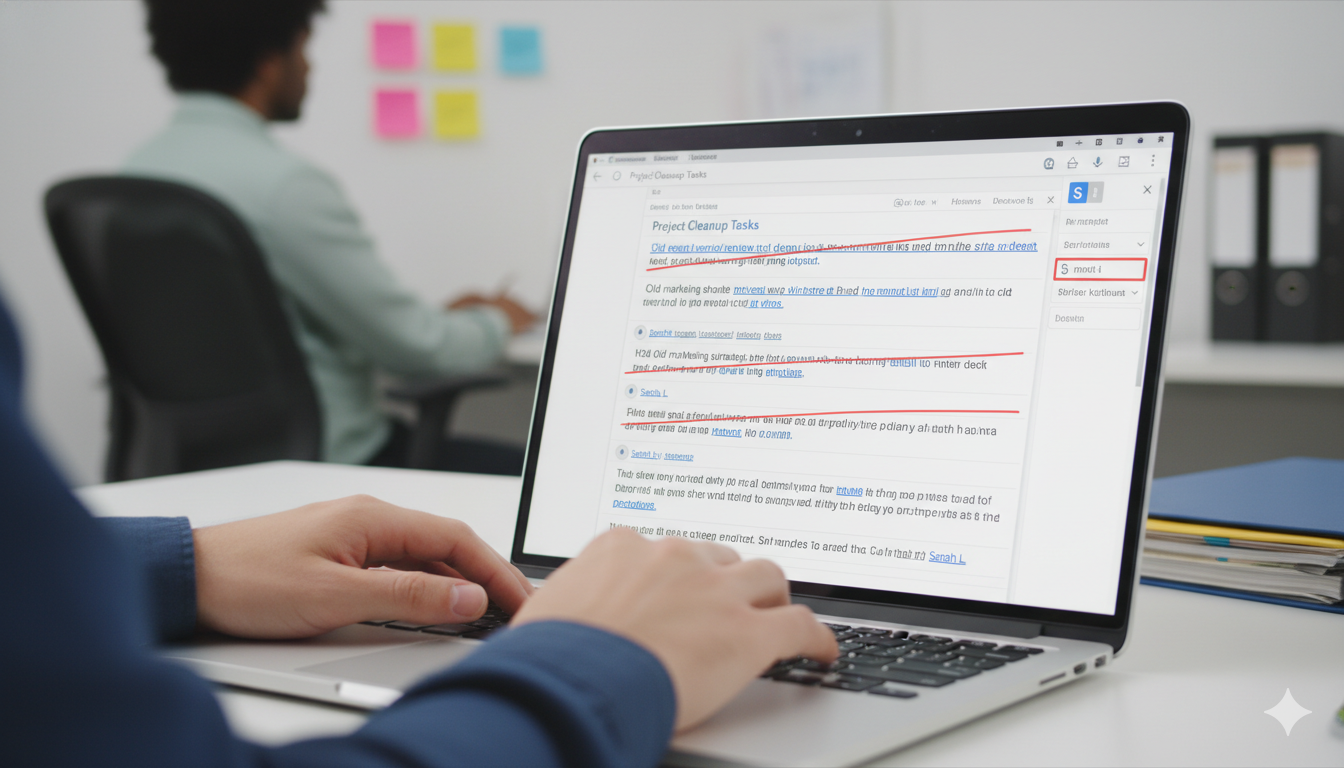
Editing a document can often feel like a messy puzzle, but knowing how to use Strikethrough Google Docs tools makes it much easier. Whether you are checking off a to-do list or showing a colleague what needs to be removed, this formatting style is a lifesaver. Many people wonder how to strikethrough google docs without clicking through a million menus. The good news is that it is actually quite simple once you learn the right tricks. In this guide, we will look at every possible way to cross out your text, from the basic menu options to the fastest keyboard hacks available today.
When you add strikethrough google docs, you aren’t just deleting words; you are keeping a record of changes. This is very helpful for teams working together on a big project. Instead of just making text vanish, you show everyone what the old idea was and where the new one is going. I use this all the time when I’m drafting content or organizing my weekly goals. It helps me stay focused and see my progress in real-time. By the end of this article, you will be an absolute pro at managing your digital ink like a seasoned editor.
Quick Reference: Strikethrough Google Docs Details
| Feature | Information |
| Primary Tool | Google Docs Text Formatting |
| Main Function | Drawing a horizontal line through text |
| Common Use | Editing, Task Lists, Collaboration |
| OS Support | Windows, Mac, ChromeOS, iOS, Android |
| Ease of Use | Very Easy (Beginner Friendly) |
How to Do Strikethrough Google Docs via the Format Menu
If you are not a fan of memorizing keys, the easiest way to insert Strikethrough Google Docs is through the top menu bar. First, use your mouse to highlight the specific word or sentence you want to cross out. Then, look at the top of your screen and click on the “Format” tab. From the dropdown menu, hover over “Text,” and you will see a list of styles like Bold and Italic. Click on “Strikethrough,” and a line will instantly appear through your selected text. It is a very visual process that works perfectly for beginners.
Learning how to do strikethrough google docs this way is great because you can see all the other options at the same time. For example, you might decide that you also want to make the text bold or underlined. This menu method is the foundation of document editing. Even though it takes a few extra clicks compared to a shortcut, it is reliable and works exactly the same way every single time. It is the best starting point for anyone who is just getting used to the Google workspace environment and wants to ensure their formatting is perfect.
The Essential Keyboard Shortcut for Strikethrough Google Docs
For those who want to work faster, using a shortcut for Strikethrough Google Docs is the way to go. If you are using a Windows computer, the magic keys are Alt + Shift + 5. You simply highlight your text and press those three keys at the exact same time. It feels like a secret superpower once you get the hang of it! No more digging through menus or moving your mouse back and forth. This keyboard shortcut for strikethrough google docs will save you several minutes of work over the course of a long day.
On the other hand, if you are a Mac user, the strikethrough google docs shortcut is slightly different. You will need to press Command + Shift + X. This is one of the most popular commands because it is so easy to reach with one hand. Whether you are a student or a professional, mastering the shortcut to strikethrough google docs makes your writing flow much better. You can keep your fingers on the keyboard and stay in the “zone” while you are editing your latest masterpiece or finishing up a school report.
How to Strikethrough Google Docs Mac Users Guide
Mac users often have their own unique set of buttons, and Google Docs respects those differences. As mentioned, the strikethrough google docs mac command is Command + Shift + X. However, some people prefer using the trackpad. You can still use the Format menu at the top of the screen just like Windows users do. Many Apple fans love the sleek feel of the interface, and the strikethrough google docs shortcut mac is designed to be ergonomic and quick. It’s a small detail, but it makes the user experience feel much more polished and intuitive.
When you are working on a MacBook, you might also be using the Google Docs app. While the command for strikethrough google docs works in the browser, the app might require you to tap the “A” icon with four lines next to it to find your text styles. Regardless of the device, the goal is the same: making your text look exactly how you want it. Using text strikethrough google docs on a Mac is a seamless process that helps you communicate clearly with your team without any technical hiccups or delays in your creative workflow.
Using Strikethrough Google Docs Chromebook Shortcuts
Chromebooks are very popular in schools, and students often need to know the strikethrough google docs chromebook method. Since Chromebooks run on ChromeOS, they use the same shortcut as Windows: Alt + Shift + 5. This is very helpful for teachers who are showing students how to edit their essays. By using a hotkey for strikethrough google docs, students can quickly show which parts of their draft they plan to change. It makes the peer-review process much more interactive and easy to follow for everyone involved in the classroom.
I remember the first time I used a Chromebook for a group project; I was confused because the keyboard looks a bit different. But once I learned the keyboard shortcut strikethrough google docs command, everything clicked. It’s all about building that muscle memory. Once you do it a few times, your fingers will automatically reach for those keys whenever you need to cross something out. Whether you are writing a lab report or a creative story, the strikethrough google docs feature helps you organize your thoughts without deleting your hard work permanently.
How to Remove Strikethrough Google Docs Easily
Sometimes we change our minds, and that is perfectly okay! Knowing how to remove strikethrough google docs is just as important as knowing how to add it. If you have a line through your text and you want it gone, simply highlight that text again. You can then use the same shortcut strikethrough google docs command you used to put it there. For Windows, press Alt + Shift + 5 again. For Mac, press Command + Shift + X. It acts like a toggle switch—one press turns it on, and the next press turns it off.
If you prefer the menu, just go back to Format > Text > Strikethrough. You will see a small checkmark next to the word “Strikethrough” if it is currently active. Clicking it again will undo strikethrough google docs and return your text to its normal state. This is very helpful when a boss or teacher decides that a previously rejected idea is actually pretty good! Being able to quickly remove strikethrough google docs ensures that your final document looks clean, professional, and ready for a wide audience to read and enjoy.
Why Use Text Strikethrough Google Docs for Productivity?
You might wonder why we don’t just delete text instead of using text strikethrough google docs. The answer lies in “visual history.” When you are working on a team, seeing what has been changed is vital for staying on the same page. It’s a way of saying, “We thought about this, but we are moving in a different direction.” Using strikethrough google docs allows you to keep your old ideas visible but clearly marked as “inactive.” This prevents people from accidentally suggesting the same thing again later in the project.
Personally, I use this feature for my daily to-do lists. Instead of deleting a task when I finish it, I use the strikethrough google docs shortcut. At the end of the day, I can see a long list of crossed-out items, which gives me a great sense of accomplishment. It is a psychological win! It proves that I was busy and productive. If I just deleted the lines, my page would be empty, and I wouldn’t feel that same level of satisfaction. So, whether for work or personal life, the strikethrough google docs tool is a hidden gem for productivity.
Tips for Strikethrough Google Docs Windows Users
For those on a desktop or laptop running Windows 10 or 11, the strikethrough google docs windows experience is very smooth. Most keyboards have the Alt and Shift keys right next to each other, making the Alt + Shift + 5 combo very easy to hit. One tip I always share is to make sure you aren’t accidentally hitting the “Ctrl” key instead of “Alt,” as that will perform a completely different function. Accuracy is key when you are using any keyboard shortcut for strikethrough google docs to ensure you don’t trigger a different command.
Another great tip for Windows users is to use the “Clear Formatting” option if you get stuck. If you have applied too many styles and can’t seem to undo strikethrough google docs, you can press **Ctrl + **. This will strip away all the bold, italics, and strikethroughs at once. It’s like a “reset” button for your text. This is extremely helpful when you copy and paste text from a website and it brings over weird lines or colors that you don’t want. It keeps your strikethrough google docs usage precise and professional.
Finding the Strikethrough Google Docs Shortcut on Mobile
While most people use a computer, sometimes you need to edit on the go. Adding strikethrough google docs on a phone or tablet is a bit different. You won’t have a physical keyboard, so you can’t use the strikethrough google docs shortcut. Instead, you have to tap the “A” icon at the top of the mobile app screen. This opens the formatting panel. Under the “Text” tab, you will see a symbol that looks like an “S” with a line through it. Tapping that will add strikethrough google docs to whatever text you have selected on your screen.
It is a bit slower than using a hotkey for strikethrough google docs, but it is still very effective for quick edits while traveling. I often use this when I’m on the bus and realize I need to update a checklist. The mobile version of the strikethrough google docs tool is simplified but carries all the power of the desktop version. Just remember to highlight the text first, or the button won’t do anything! It’s a common mistake that even the best writers make when they are in a rush.
Advanced Formatting: Combining Strikethrough with Other Styles
One of the best things about the strikethrough google docs feature is that it plays well with others. You can have text that is bold, italicized, and struck through all at the same time. This is useful for emphasizing that something is definitely not happening! To do this, you can layer your shortcuts. For example, on Windows, you could hit Ctrl + B for bold and then Alt + Shift + 5 for your strikethrough google docs shortcut. This creates a very strong visual message for anyone reading your document.
When you insert strikethrough google docs alongside different colors, it can also help with categorizing errors. Maybe red strikethrough means “this is a fact error” and blue strikethrough means “this is a grammar error.” Getting creative with how you add strikethrough google docs can turn a simple word processor into a powerful project management tool. Just be careful not to overdo it, or your document might start looking like a rainbow gone wrong. Keep it clean and purposeful for the best results in a professional setting.
Frequently Asked Questions (FAQs)
1. What is the fastest shortcut for strikethrough google docs on Windows?
The fastest way is to press Alt + Shift + 5 on your keyboard after highlighting the text you want to change.
2. Can I use a strikethrough google docs shortcut on a Mac?
Yes! Mac users should use the command Command + Shift + X to quickly cross out their text.
3. How do I remove strikethrough google docs if I change my mind?
You can simply highlight the text and press the same shortcut keys again, or go to Format > Text > Strikethrough to uncheck the option.
4. Is there a command for strikethrough google docs on a Chromebook?
Absolutely. Since Chromebooks use a similar layout to Windows, the command is Alt + Shift + 5.
5. Why won’t my strikethrough google docs shortcut work?
Make sure you have actually selected (highlighted) the text first. Also, ensure your cursor is active inside the Google Doc and not in the address bar of your browser.
6. Can I add strikethrough google docs on the mobile app?
Yes, tap the “A” icon at the top of the app, then select the “S” icon with a line through it under the Text menu.
Conclusion: Elevate Your Editing Today
Mastering the strikethrough google docs tool is a small step that leads to much better document organization. Whether you prefer using the strikethrough google docs shortcut on a Mac or the menu system on a PC, you now have the knowledge to edit like a pro. Remember that these tools are there to help you communicate more clearly with your friends, teachers, or coworkers. Don’t be afraid to experiment with the shortcut to strikethrough google docs until it becomes second nature to you.
Now that you know how to strikethrough google docs, why not try it out on your next project? Open up a blank page, type a few sentences, and practice the hotkey for strikethrough google docs until you can do it with your eyes closed. It’s a great way to boost your digital literacy and make your workflow smoother. If you found this guide helpful, feel free to share it with a friend who might be struggling with their Google Docs formatting. Happy writing and happy editing!
